Computer Engineering
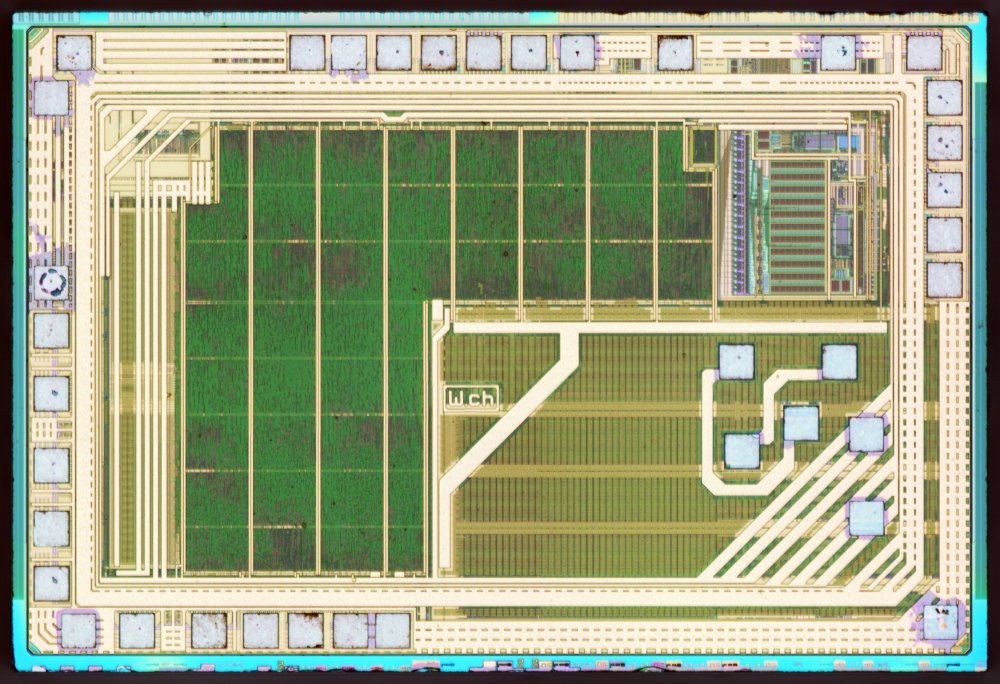
Over 35,000,000,000 (billion!) microcontrollers (MCUs) were manufactured last year. Each is a chip that contains a processor, RAM, code storage, and everything else it needs to run programs and interact with the outside world.
Devices with these chips are called embedded systems and are designed and programmed by Electrical and Computer Engineers.
1. Computer Engineering Overview
Computer Engineering (CpE) sits at the intersection of hardware and software.
If you enjoy:
-
figuring out how electronics work,
-
writing code that controls real devices,
-
building systems that interact with the physical world,
then Computer Engineering might be the right major for you.
Think of CpE as the place where:
-
electrical engineering overlaps with computer science,
-
sensor data is collected and fed to firmware which decides what physical actions to take,
-
hardware and software combines to create complete working systems.
1.1. What Computer Engineers work on
Computer Engineers design and build systems where hardware and software must work together.
Examples include:
-
Embedded systems (devices with computers inside)
-
Robotics and autonomous systems
-
Satellites and space hardware
-
Medical devices
-
Automotive systems
-
Consumer electronics
-
Industrial automation and manufacturing
-
Video, audio, and media production
-
Aerospace and defense systems
-
Energy and smart infrastructure
Most real-world products contain a computer,
and someone had to design both the electronics and the software that makes them work.
1.2. CpE courses
Valpo’s Computer Engineering curriculum includes:
-
Circuits and electronics
-
Digital logic
-
Programming and software design
-
Embedded systems and microcontrollers
-
Signals and communications
-
Networking and security
-
Computer architecture
-
Team-based design projects
From your second semester as a CpE, you will build code-controlled hardware through a series of projects in your courses. With increasing scope and complexity, your course projects work towards building complete systems that look a lot like industry projects.
1.3. Career opportunities
Computer Engineers work in many industries simply because nearly every device now contains some type of computing and programmable features.
Common job titles include:
-
Embedded Systems Engineer
-
Hardware Design Engineer
-
Firmware Developer
-
Edge AI Engineer
-
Systems Engineer
-
FPGA / Digital Design Engineer
-
Control Systems Engineer
-
Aerospace or Satellite Systems Engineer
-
IoT Developer
-
Test and Integration Engineer
Many graduates work in software roles alongside computer science graduates because CpE’s also understand how the software interacts with hardware.
1.4. Career stats
Computer Engineering careers are strong and growing. There is a wide range by specialization and region!
Growth for many related fields is faster than average, especially where software meets physical systems.
1.5. Why companies want Computer Engineers
Companies value engineers who can:
-
understand electronics and software at the same time
-
troubleshoot across boundaries
-
prototype quickly
-
communicate with both hardware and software teams
If you can do both, you often become the person who connects the entire project together.
1.6. Is Computer Engineering right for you?
You might enjoy CpE if you like:
-
building things instead of only studying them
-
understanding how systems really work
-
solving puzzles that involve both logic and physical behavior
-
experimenting and improving designs
You do not need to already know everything! Valpo’s curriculum is intentionally designed to develop you from the motivated novice you are now into a confident engineer by graduation.
Curiosity and persistence matter more than experience.
1.7. How this relates to today’s activity
In this session, you are doing a simplified version of real Computer Engineering work:
-
understanding the hardware
-
writing code
-
uploading it to embedded system hardware
-
observing physical behavior
-
changing the code to make new behavior happen
build → test → observe → improve → build
This loop is the core of engineering practice (all majors!).
You are not just "learning programming." You are controlling a physical system.
---
Today’s MakerPi exercise is a tiny example of the kinds of systems Computer Engineers build.
As you work through the activity, think about:
-
What parts feel fun?
-
What parts feel challenging?
-
What would you change if you had more time?
That curiosity of asking "what happens if…?" is exactly how engineers think.
2. Supplies
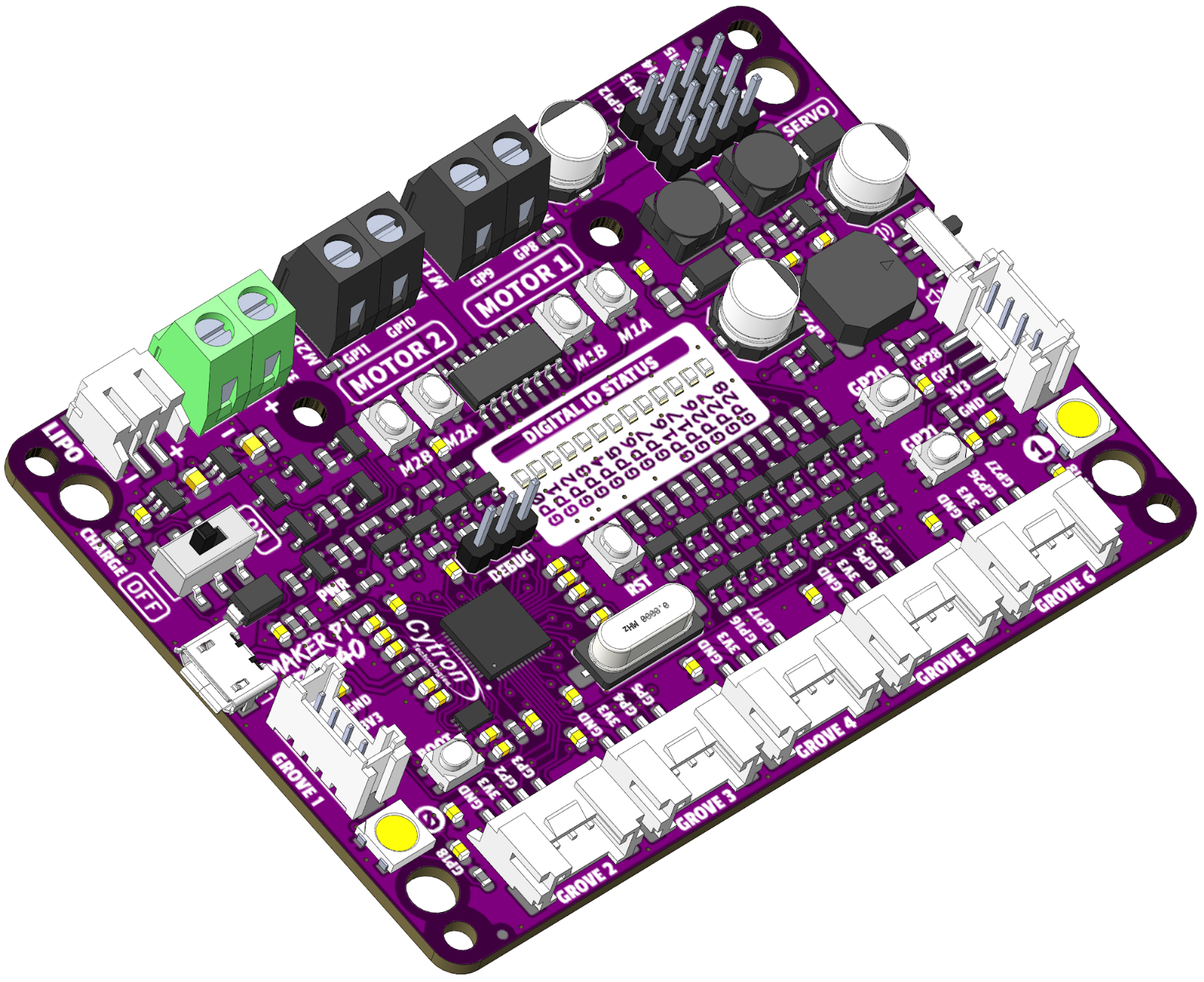
- Hardware
-
-
Maker Pi RP2040 development board
-
microUSB data+power cable
-
SG90 Servo + control horn on
GP15 -
The LONG activity adds an N20 geared motor on the
MOTOR 1connector
-
- Computer
-
-
 Thonny software for editing and downloading code to the board
-
3. DC motor
If today is the SHORT version: skip to § 4, “Servo”
3.1. Manual control
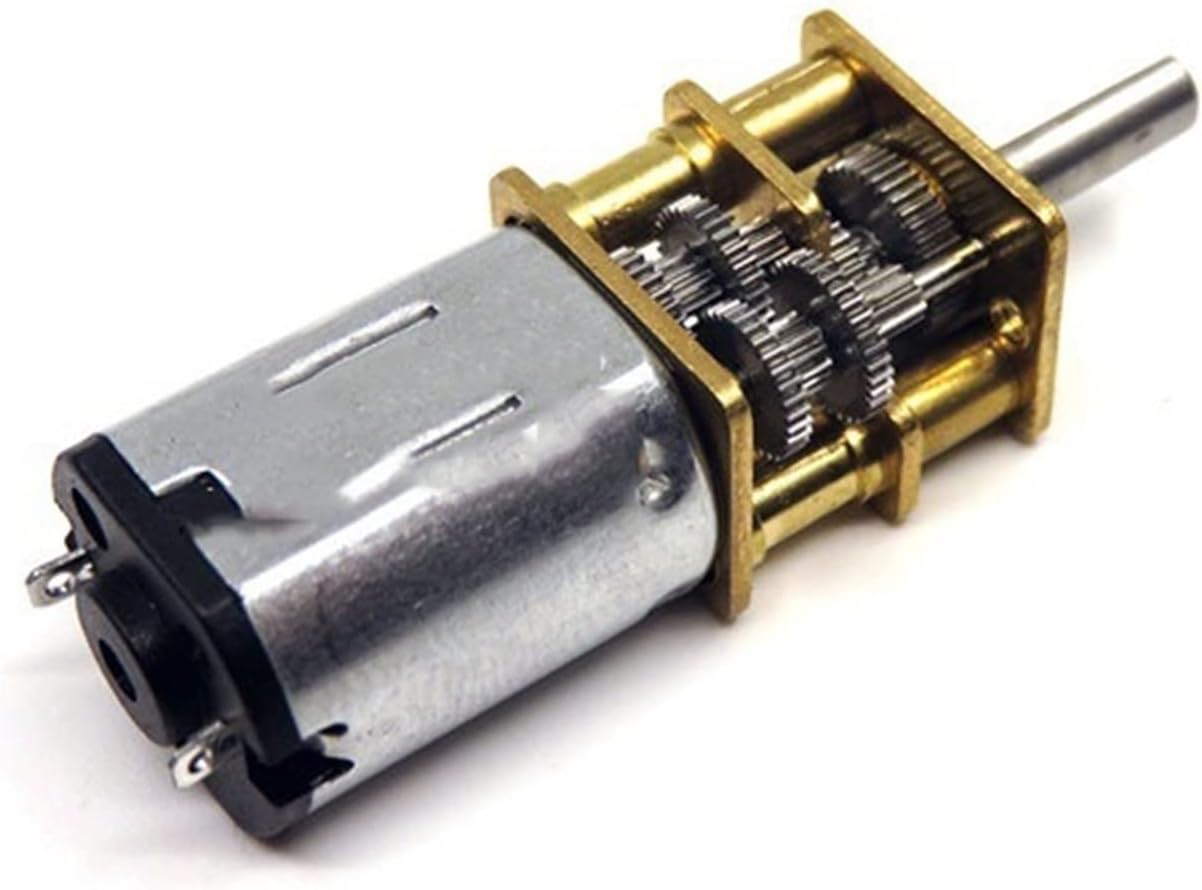
Let’s first play with a DC motor and make it spin without any programming. Remember: a computer just does this really fast, that’s all.
The N20 gear motor is a small DC motor with a gearbox that comes in many variations of gear ratios and output shaft options.
If you have used an electronic door lock and heard the whirring sound it makes when locking, it was likely a variation of this motor inside.
They have a good combination of speed, torque, and size for small robotics projects.
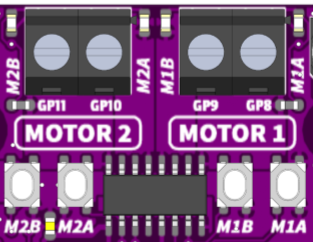
Find the motor terminals and driver chip on your board like in Figure 4, “Motor connections”. The buttons let us test the motor before we write any code.
-
Push the buttons!
What happens? (click after seeing for yourself)
It jumps when starting and when stopping. This is the effect of Newton’s laws of motion when the motor changes speed suddenly. The twisting is the reaction force (torque) from trying to accelerate the motor rotor’s mass.
-
Push down both
M1BandM1Abuttons at the same time, -
then rock your finger so its only pushing one button to spin the motor.
What is different? (click after seeing for yourself)
It jumps when starting but coasts down instead of stopping suddenly when you push both buttons. Coasting instead of stopping suddenly means much less torque on the motor and so not enough to make it jump.
buttonM1A |
buttonM1B |
pinGP8 |
pinGP9 |
Motor effect |
|---|---|---|---|---|
up |
up |
0 |
0 |
brake / short |
up |
down |
0 |
1 |
forward |
down |
up |
1 |
0 |
backward |
down |
down |
1 |
1 |
coast / open |
You are seeing the difference between short-circuiting the motor (acting like a brake) and disconnecting the motor (letting it slow down with only friction). The motor driver chip has transistor switches inside and the input combinations activate the various operational modes.
-
Look at Table 1, “Motor driver behavior” and try out the button combinations again.
In an electric vehicle, stepping on the brake pedal activates the brake mode of the motor controller — it is converting mechanical kinetic energy from the car’s speed back into electrical energy to recharge the battery. Pressing the brake pedal harder will eventually engage the mechanical disc brakes, but it would be a good engineering design if the regenerative braking was used as much as possible.
3.2. Program control
Let’s now “push the buttons” from code instead.
Open Thonny and connect it to your board.
( follow the live demo )
| The stop button is sometimes needed to re-connect with the board. |
-
Click the
 icon in the upper-right next to
 PYTHONto copy the code to your clipboard. -
Paste this in Thonny into the
code.pyfile on your board. -
Run the code by clicking the Run current script (F5) play button
from time import sleep
import board
import digitalio as dio

# Setup DC motor pins
M1A = dio.DigitalInOut(board.GP8)
M1A.direction = dio.Direction.OUTPUT

M1B = dio.DigitalInOut(board.GP9)
M1B.direction = dio.Direction.OUTPUT

# Names are better than numbers
BRAKE    = (0, 0)
FORWARD  = (0, 1)
BACKWARD = (1, 0)
COAST    = (1, 1)

# Sequence of things to do
commands = (
    FORWARD,
    BRAKE,
    FORWARD,
    COAST,
    BACKWARD,
    BRAKE,
    BACKWARD,
    COAST,
)

# Do this forever
while True:
    # walk through each of the actions
    for state in commands:
        print(state)

        # set the motor pins
        M1A.value, M1B.value = state

        # wait for a bit
        sleep(0.5)
Take a minute to read this code while watching what the motor does,
-
then change the code to do something a little different and re-run (easy: F5 on your keyboard).
How about just FORWARD, COAST and only sleep for 0.001 seconds?
(first comment out the print(state))
or FORWARD, COAST, COAST?
This is how a speed controller works for a DC motor!
Click for more details about mechanical averaging.
- Mechanical averaging
-
The simple “trick” is applying power to the motor then letting it coast really quickly. Even this small motor can’t speed up much when power is applied for 0.001 seconds, but it still does some. After a bunch of pulses the motor eventually is going at a slower speed that is proportional to the ON time percentage. The rotational inertia of the motor is doing the smoothing of those quick pulses while the electronics are hammering the motor with speedup/slowdown commands.
3.3. Pulse-width modulation PWM
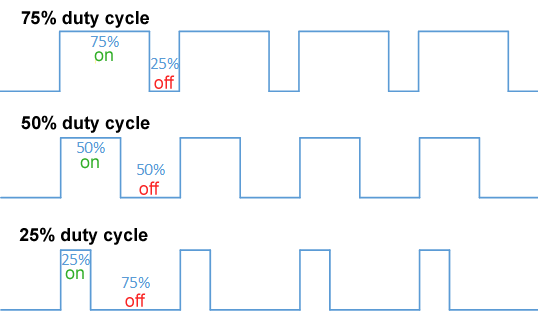
An MCU has special logic circuits to easily “blink” pins quickly and evenly without needing to manually bit-bang the pins using code. This extra circuitry, controlled by the processor, is what makes MCUs so incredibly useful.
A common method is to set the high time to a fraction (duty cycle) of the repetition time (period), and is called pulse-width modulation (PWM). Remember: \(\text{frequency} = \frac{1}{\text{period}}\).
Copy this code into Thonny and run the script.
Push the GP20 and GP21 buttons to change the motor’s speed and direction by changing the PWM duty cycle.
from time import sleep
import board
import digitalio as dio

import pwmio
from adafruit_motor import motor

# Initialize buttons as digital inputs
button1 = dio.DigitalInOut(board.GP20)
button1.direction = dio.Direction.INPUT
button2 = dio.DigitalInOut(board.GP21)
button2.direction = dio.Direction.INPUT

# DC motor setup
M1A = pwmio.PWMOut(board.GP8, frequency=1_000)
M1B = pwmio.PWMOut(board.GP9, frequency=1_000)
motor1 = motor.DCMotor(M1A, M1B)

# variables to remember our status
speed = 0
last_speed = speed

# always do this
while True:
    # Read buttons' values and change the speed
    if button1.value == 0:   # button pin is _low_ when pressed!
        speed += 1

    if button2.value == 0:
        speed -= 1

    # what do these do??
    speed = max(speed, -100)
    speed = min(speed, 100)

    if speed != last_speed:  # only update the user if something actually changed
        last_speed = speed
        print(speed)

    # update the motor's speed.
    if speed == 0:
        motor1.throttle = None  # 0 is "brake", None is "coast"
    else:
        motor1.throttle = speed / 100  # need -1.0 to +1.0 instead of a percent

    # Wait before reading the button again
sleep(0.01)-
What happens if you press both input buttons at once? Figure this out from the code and try it out!
Click for more details about the motor noises.
- Screaming motors?
-
Remember how the motor is really speeding up and slowing down quickly and not actually moving at a truly constant speed? This is a physical (change in) motion of a thing about 1,000 times per second — which moves the air around it — which is in the middle of a human’s hearing range ⇒ sound! The varying pulse width changes the number and strength of frequencies of N × 1,000 Hz, which is why the sound changes with the speed. You compute these exactly in a junior-level ECE course.
4. Servo
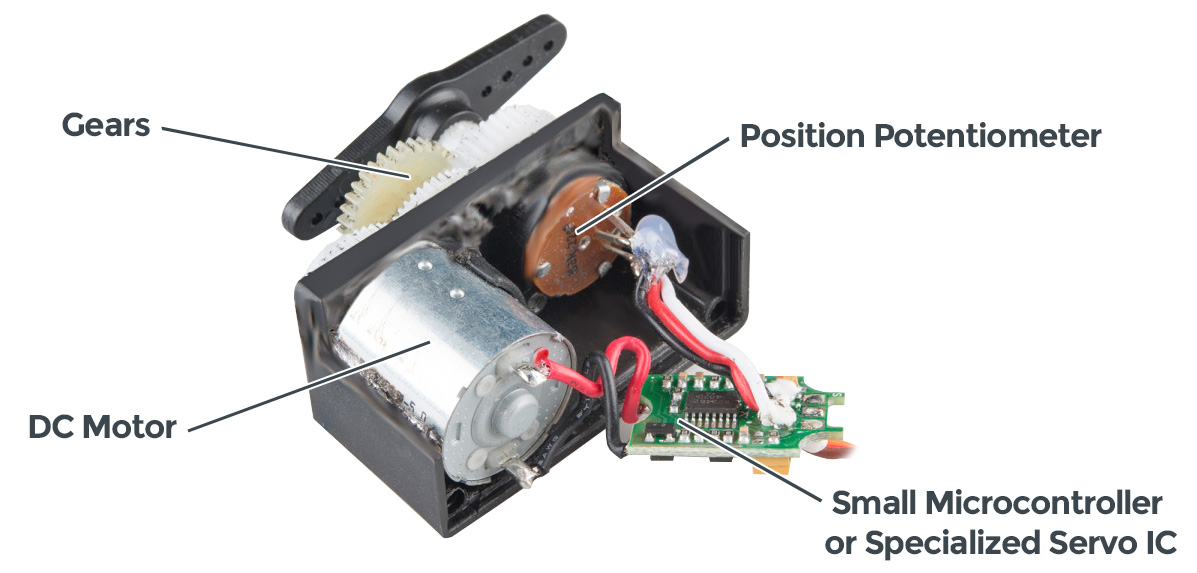
A servo is a combination of a mover and a shaker position sensor with a circuit that figures out how to move to the position commanded at its control input.
They take a specific range of pulse widths that repeat at a 50 Hz (1 / 50 = 20 ms) refresh rate.
The Maker Pi board has convenient connectors for 4 servos.
It can handle up to 18 by manually wiring to the GPxx pins if you have some crazy ideas.
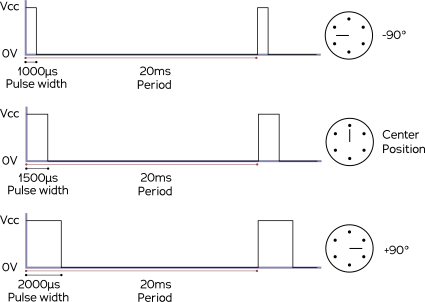
For most hobby-type servos, a pulse width of 1000 μs is the start of its travel, while a pulse 2000 μs wide is interpreted as a command to go to the end of its range of travel. This is another form of Pulse-Width Modulation (PWM).
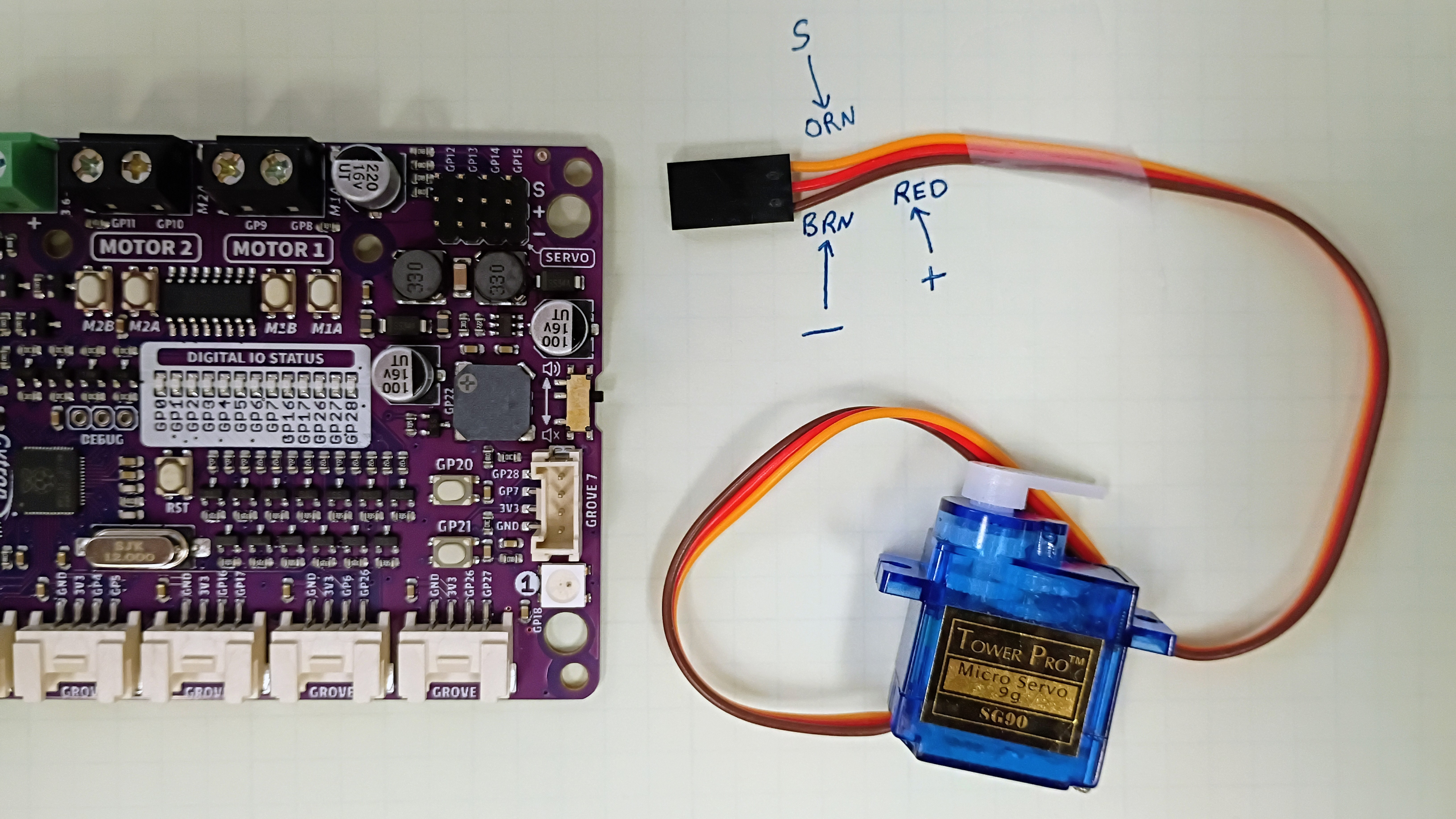
Plug the servo connector into the servo port labeled GP15 closest to the S + - label in the corner.
S to orange and - to brown
Open Thonny and connect it to your board.
( follow the live demo )
-
Click the
icon in the upper-right next to PYTHONto copy the code to your clipboard. -
Paste this in Thonny into the
code.pyfile on your board. -
Run the code by clicking the Run current script (F5) play button
| The stop button is sometimes needed to re-connect with the board. |
from time import sleep
from microcontroller import delay_us
import board
import digitalio as dio


pin = dio.DigitalInOut(board.GP15)
pin.direction = dio.Direction.OUTPUT

led = dio.DigitalInOut(board.GP28)
led.direction = dio.Direction.OUTPUT


def pulse(width, p=pin):
    p.value = 0
    p.value = 1
    delay_us(width)
    p.value = 0


def pulseN(width, count=10, p=pin):
    for _ in range(count):
        p.value = 1
        delay_us(width)
        p.value = 0
        sleep((20000 - width) / 1_000_000)


# The SG90 servos seem to need several pulses to "wake up" from powering on.
# After the initialization, they generally respond to a single pulse okay,
# though then not actively keeping that commanded position angle.

# So, we send a middle-range pullse train at loading time.
pulseN(1500, count=10)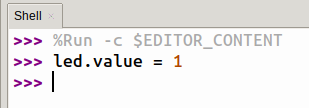
The servo may move, but nothing much else will happen, but then type led.value=1 in the Shell prompt after the >>> and press Enter.
Notice how one of the middle blue LEDs turned on.
Look at the label then at the code to match the pin numbers.
Now send a pulse of 100 μs to the servo by typing:
pulse(1000) at the prompt and pressing Enter.
Try: pulse(2000).
Then make the servo move to a different angle in between yourself.
-
Paste the following in Thonny into the
code.pyfile on your board. -
Run the code by clicking the Run current script (F5) play button
from time import sleep
import board
import digitalio as dio

import pwmio
from adafruit_motor import servo

# Initialize buttons as digital input.
button1 = dio.DigitalInOut(board.GP20)
button1.direction = dio.Direction.INPUT
button2 = dio.DigitalInOut(board.GP21)
button2.direction = dio.Direction.INPUT

# Create a PWMOut object on the servo's control pin
# Initialize Servo object.
pwm15 = pwmio.PWMOut(board.GP15, duty_cycle=0, frequency=50)
servo15 = servo.Servo(pwm15, min_pulse=600, max_pulse=2400)

# variables to keep track of things
angle = last_angle = 90

# The Main Event ... loop
while True:
    # Read buttons' values to change the angle.
    if button1.value == 0: angle += 1
    if button2.value == 0: angle -= 1

    # Limit the angle from 0 to 180 degrees.
    angle = max(angle, 0)
    angle = min(angle, 180)

    if angle != last_angle:
        last_angle = angle
        print(angle)

    # Command a new servo angle.
    servo15.angle = angle

    # Delay a bit to allow servo to move.
sleep(0.01)-
Modify the code to move by 5 degree steps instead.
Click for more things to try.
- Servos fight back
-
Try to turn the servo while its powered up and being sent a position command — it fights back with force. What is happening is: you change the angle a little bit → the control chip notices that the actual angle is different from the commanded angle → the chip drives the motor in the direction to fix this error (at full power!).
Remember which way the connector goes and un-plug the servo. Now try to turn the output shaft. The only resistance now is the friction in the gear train to spin the motor. Such a large gear ratio allows a servo to use a small high-speed motor and still provide lots of torque at the output shaft.
5. Everything
Use the two buttons to control both the DC motor speed and servo position. Deal with the fact that the motor library expects numbers {-1.0 … +1.0} while the servo library expects numbers {0 … 180}.
from time import sleep
import board
import digitalio as dio

import pwmio
from adafruit_motor import servo
from adafruit_motor import motor

# Initialize buttons as digital input.
button1 = dio.DigitalInOut(board.GP20)
button2 = dio.DigitalInOut(board.GP21)
button1.direction = button2.direction = dio.Direction.INPUT

# DC motor setup
M1A = pwmio.PWMOut(board.GP8, frequency=1_000)
M1B = pwmio.PWMOut(board.GP9, frequency=1_000)
motor1 = motor.DCMotor(M1A, M1B)

# Create a PWMOut object for the servo's control pin.
# Initialize Servo objects.
pwm15 = pwmio.PWMOut(board.GP15, duty_cycle=0, frequency=50)
servo15 = servo.Servo(pwm15, min_pulse=580, max_pulse=2700)

# variables for housekeeping
angle = last_angle = 90

# why quit when you're having fun!
while True:
    # Read buttons' values.
    if (button1.value == 0): angle += 1
    if (button2.value == 0): angle -= 1

    # Limit the angle from 0 to 180 degrees.
    angle = min(max(angle, 0), 180)

    # Command a new servo angle.
    servo15.angle = angle

    # convert 0..180 angle range to -1.0 to +1.0 motor range
    speed = (angle - 90)/90
    if speed == 0:  speed = None  # motor speed = 0 is special, so avoid it

    # update the motor's speed
    motor1.throttle = speed

    # Slow down the update rate so the button effect feels reasonable.
sleep(0.01)6. References
Want to do this yourself at home?
The following sections get you started — go to the online version to see them:
-
Add
.pdfto the end of the page’s URL to download the PDF version.
6.1. MakerPi RP2040 from Cytron
Places to purchase one:
You may want additional jumper cables to plug into all the locations at once, the white connectors are called "Grove" connectors:
6.2. New to CircuitPython?
Read these in order:
CircuitPython is a modification of MicroPython and is great for learning and short programs.
I usually use MicroPython directly because it makes “driving” the advanced details the MCU in ways that make more sense for me as an expert.
The Maker Pi RP2040 board’s documentation helpfully has examples for both.
You can also program the board using the Arduino tools, or even in bare C or C++ for ultimate control of the software and hardware.
6.4. Thonny install + setup
|
Most CircuitPython tutorials recommend using the Mu editor. It does work fine, at Valpo we use Thonny because it has more features while still being easy to use. |
Download and install Thonny from thonny.org.
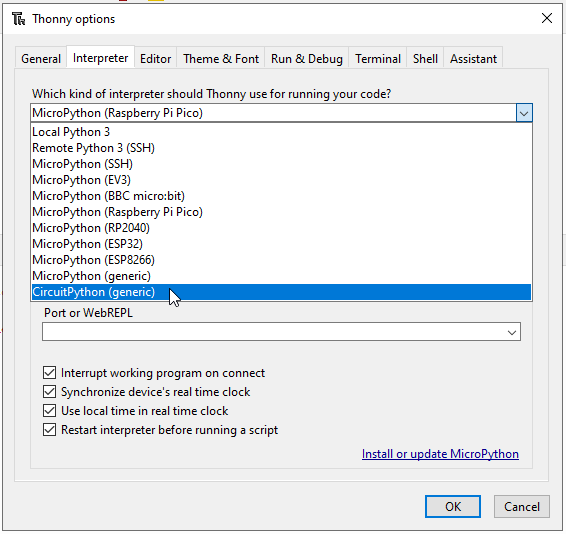
Open Thonny and prepare it for connecting to external boards:
-
[Menu] Tools → Options →
[tab] Interpreter →
[dropdown] Which kind … ? →
[item] CircuitPython (generic)
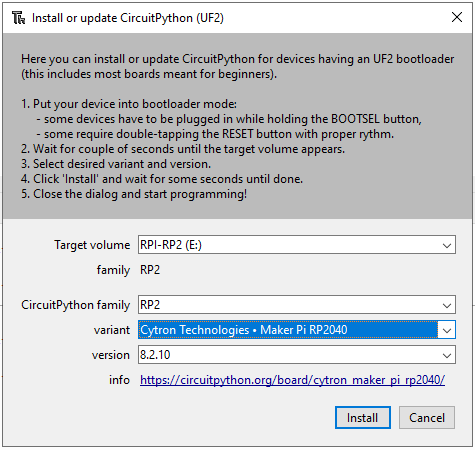
First use of the board fresh from the package, only needed once:
-
“Install or update CircuitPython (UF2)”. will do as it says.
Select Cytron Technologies - Maker Pi RP2040 from the list to match the purple board. It may be necessary to exit the Thonny options window and then open it again to refresh the list items. -
The Maker Pi has a
BOOTbutton near the USB connector that you hold while switching ON. -
Select the version that automatically shows up because it is the latest.
The screenshot is guaranteed to show a different smaller version number.
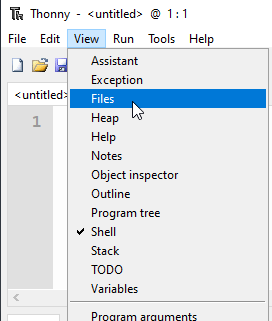
Set up Thonny’s window panes for nicer use:
-
[Menu] View → [check] Files
-
Close Thonny,
-
ensure the board is connected,
-
then re-open Thonny
When your window looks like below, you are ready to copy-paste the examples in this activity.
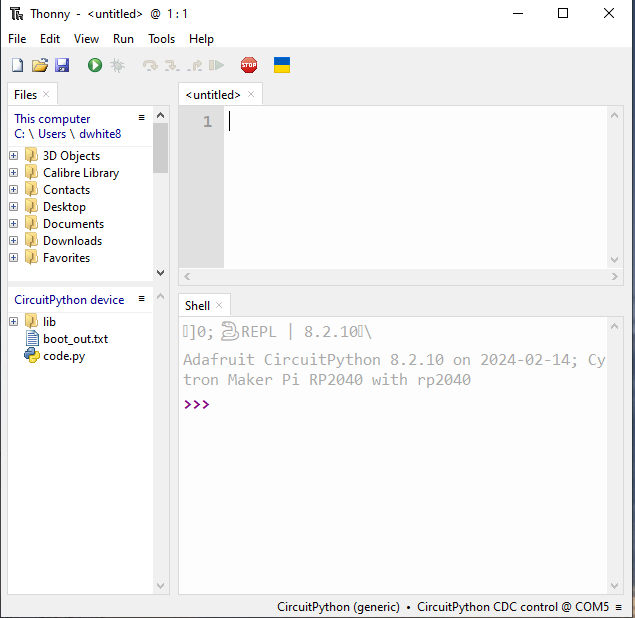
| The stop button is sometimes needed to re-connect with the board. |